
Set up local AI without touching a terminal
Running AI on your own machine normally starts at a command prompt. You install a runtime, pick a model by its tag, work out whether your GPU can hold it, edit a config file, and hope the first request does not fail. That first hour is the reason most people give up and go back to a browser tab.
InnerZero replaces that hour with an installer and a wizard. It checks your hardware, tells you what it found, picks models that fit, downloads them, measures how fast they run on your machine, and hands you a working assistant. On Windows and macOS there is nothing to install alongside it, and there is no configuration file to edit on any platform.
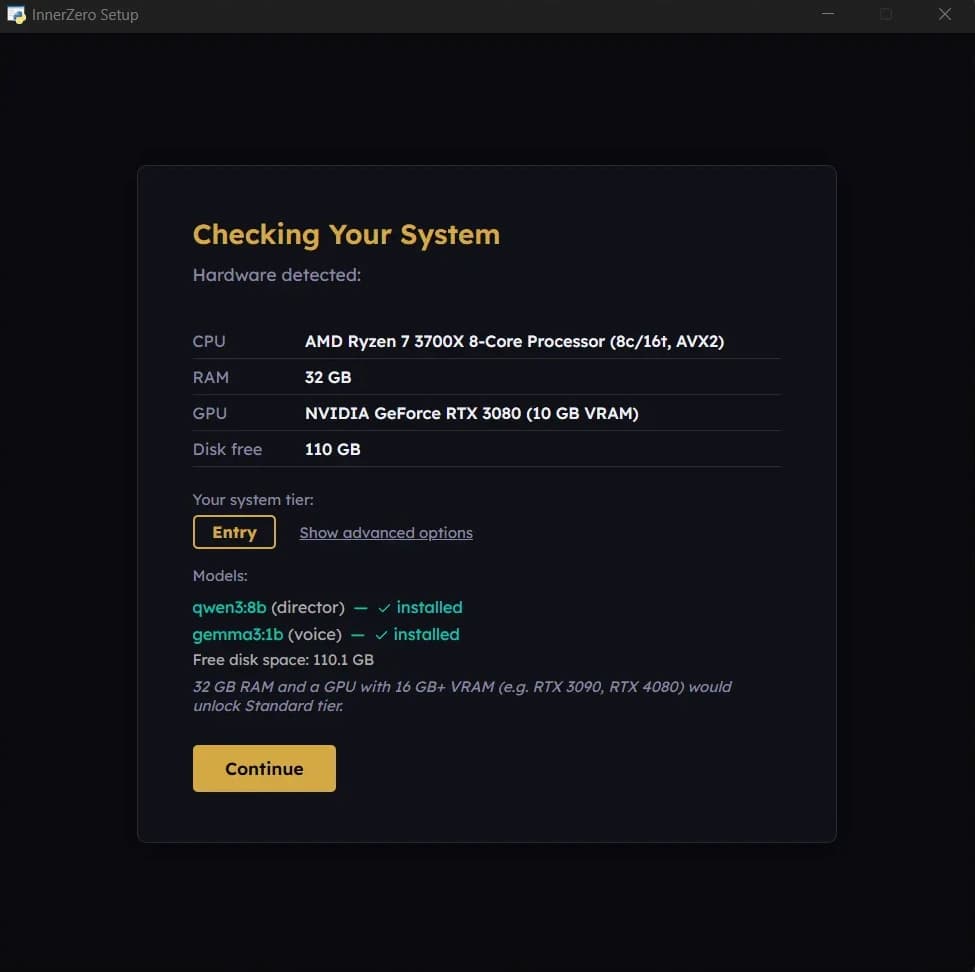
The setup wizard detects your hardware and picks the models to match. No terminal, no config files.
What is included
No terminal, no Docker, no Python install
The installer carries everything InnerZero needs, including its own Python runtime and the local AI engine that runs your models. You do not install Ollama separately, you do not set up a virtual environment, and there is no container to pull. That is true on Windows and macOS; the Linux AppImage is the exception, because a handful of system packages have to be present before it runs and installing them does use the terminal. The wizard opens on first launch with a Welcome screen, a language picker, and a single Get Started button.
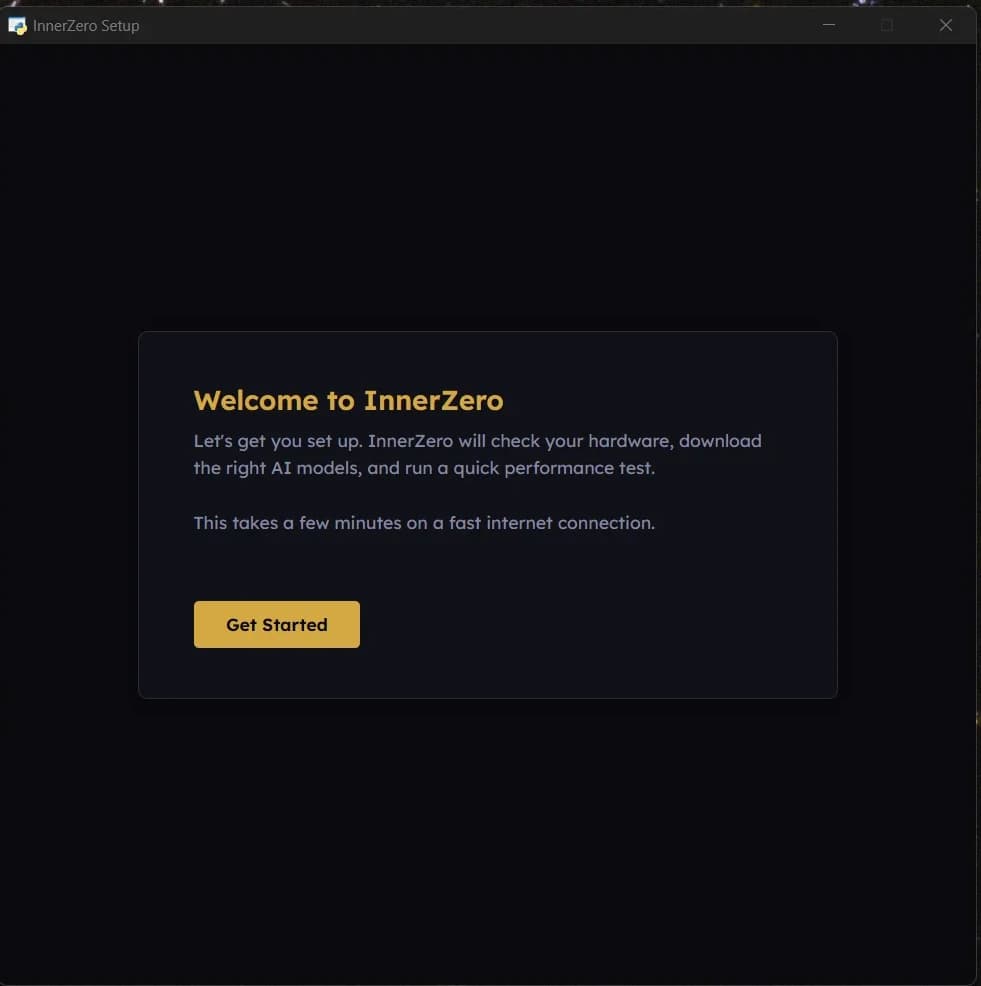
It looks at your machine before it decides anything
The second step is titled Checking Your System. It reads your CPU name, core and thread count, and whether the chip supports AVX2, then your installed RAM, your graphics card and its VRAM, and how much disk you have free. Those readings decide a system tier, which is shown as a badge along with the exact models it plans to install. If the RAM reading fails, the wizard assumes 8 GB rather than reading high.
Models download themselves
You never copy a model tag, visit a model repository, or choose a quantisation. The download step pulls the models your tier needs behind one progress bar, alongside the extra components and memory files the app needs to work offline later. An optional Wikipedia knowledge pack sits under it as a tickbox if you want offline factual answers. If a download fails, the wizard says so and offers Retry or Skip rather than continuing as though it worked.
Override the automatic choice if you disagree
A Show advanced options link on the hardware step opens a picker headed Pick a different tier, with twelve rows covering GPU and CPU-only configurations. Each row states its requirement and its download size, so the ladder runs from No Local Model (8 GB or more RAM, no GPU needed, nothing to download) and CPU Minimal (4 GB or more RAM, no GPU) up through Basic (8 GB or more RAM, no GPU), Entry (16 GB or more RAM, 8 GB or more VRAM), Standard (32 GB or more RAM, 16 GB or more VRAM), Performance (32 GB or more RAM, 24 GB or more VRAM), and on to larger GPU tiers above that, with three CPU-only tiers sitting at the end of the list. Rows that need a GPU carry a Test GPU button so you can prove the card works before you commit to the download.
A route through setup for machines that cannot run local AI
If your hardware cannot hold a local model, the wizard says so plainly instead of installing something that will not run. The tier picker has a Skip local model install section with two exits: use a cloud plan or your own provider API key, or run AI elsewhere with LM Studio, llama.cpp, a private server, or another tool. Taking the cloud route shows a privacy card first, listing what is sent and what stays on your machine, and you accept it before anything is configured.
A speed test, so you know what you have got
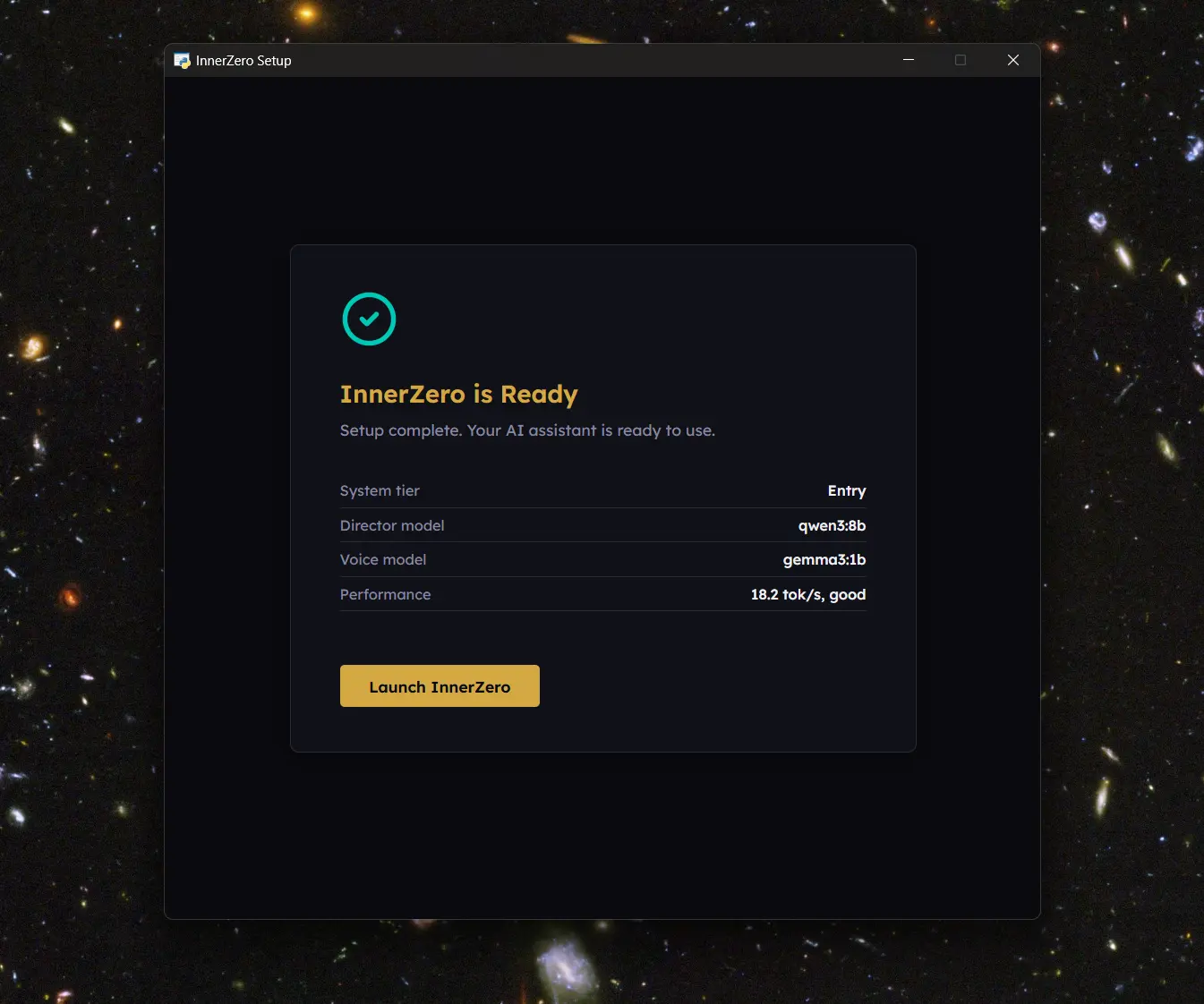
Before it finishes, the wizard runs a short benchmark against the model it just installed and reports the result in tokens per second with a plain-English rating of Excellent, Good, Acceptable, Slow, or Very slow. It is skippable if you would rather get straight to chatting. The final screen, InnerZero is Ready, lists your system tier, director model, voice model, and that measured speed, then hands you a Launch InnerZero button.
Signed installers on Windows and macOS
The Windows installer is 1.24 GB and code-signed by Summers Solutions Ltd. The macOS build is 780 MB, signed with Developer ID, notarised by Apple and stapled, so it opens on a normal double click with no Gatekeeper warning and no right-click workaround. The Linux AppImage is 1.18 GB for x86_64 and is the one platform that still asks for a command, because a handful of system packages have to be present before it runs. All three ask for 4 GB or more RAM on a 64-bit machine, and the wizard warns you before it downloads anything if disk space is tight for the tier it picked. AVX2 is not a requirement: a Windows or Linux CPU without it still runs local models, with a warning that they will be slower, and Apple Silicon has no AVX2 at all.
Nothing you choose in the wizard is permanent
Settings has a Re-run Setup button that clears the saved setup state and shows the wizard again on the next launch. You can also switch tier from Manual Profiles, or change the local engine from the AI Engine cards. Ollama is the bundled engine and switching back to it takes effect immediately, with no reinstall and no restart; LM Studio and llama.cpp are connections to a server you run yourself, so you give InnerZero its address and it talks to what you already have loaded. Your memories and settings survive all of it, and an update will not silently swap or re-download the model an existing install is already using.
Step-by-step guides
Walkthroughs for setting this up and getting the most from it.
Best Free Private AI Assistant: Local Setup Made Easy in 2026
The full walkthrough from download to first conversation, with what to expect at each step.
How to Run AI on Your PC Without the Cloud
What running a model locally actually involves, and how the desktop route compares with a browser tab.
What Hardware Do You Need to Run AI Locally?
Which CPU, RAM, and GPU combinations are worth it, and what you get on a modest laptop.
How Much VRAM Do You Need for Local AI? A 2026 Guide
How VRAM decides which model size fits, and what happens when it does not.
Frequently asked questions
Do I need to know how to code to install InnerZero?
No. You download an installer, double-click it, and a setup wizard handles the rest. There is no terminal work on Windows or macOS, no config file to edit, and no model tag to type in. The Linux AppImage is the one exception, as it needs a few system packages installed first.
Do I have to install Ollama, Python, or Docker separately?
No. The local AI engine and the Python runtime are both bundled inside the installer, and there is no container involved. On Windows and macOS nothing needs to be installed alongside InnerZero for it to work. Linux is the exception, where the AppImage needs a few system packages present first.
Do I need an internet connection to set it up?
Yes, for the first run. The wizard downloads the AI models that match your hardware, and that needs a connection. Once the download finishes, the local assistant runs on your machine without one.
What are the minimum requirements?
A 64-bit machine with 4 GB of RAM and 2 GB of free disk, plus room for whatever model you download. No dedicated graphics card is needed. Below that floor the wizard routes you to the No Local Model options rather than installing something that cannot run. AVX2 speeds local models up where the processor has it, but it is not required, and Apple Silicon does not have it at all. A GPU with 8 GB or more of VRAM is what unlocks the larger model tiers and local voice.
What happens if my computer cannot run a local model?
The wizard tells you rather than installing something that will not work. It offers a No Local Model route where you either use a cloud plan or your own provider API key, or point InnerZero at AI running elsewhere, such as LM Studio, llama.cpp, or a private server.
Can I change the model or hardware tier after setup?
Yes. Settings has a Re-run Setup button that shows the wizard again, and Manual Profiles lets you switch tier directly. You can also change the local engine without reinstalling: Ollama is the bundled one, while LM Studio and llama.cpp connect to a server you run yourself. Your memories and settings are kept either way.