
Everyday AI chat that runs on your own machine
Every AI chat box looks much the same from the outside. The differences show up after you press enter: whose machine runs the model, whether the conversation is still there tomorrow, and whether what you just typed now sits on a server you do not control.
InnerZero's chat runs against a model installed on your own machine. Answers stream in as they are written, the conversation survives a restart, and the composer carries the controls you would otherwise go hunting for: thinking speed, slash commands, a prompt library, file and image attachment, and export to real documents.
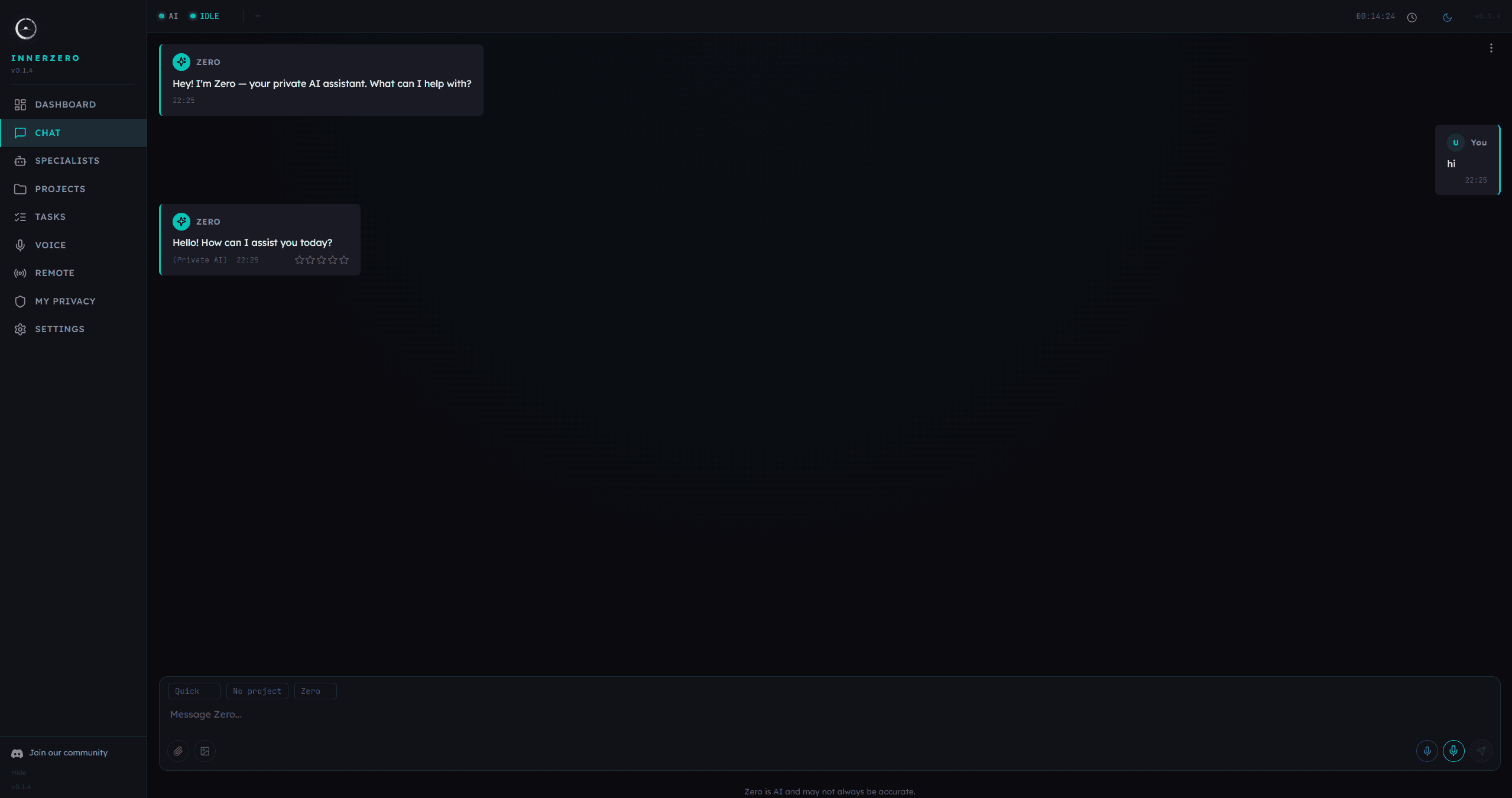
Chat runs on your machine. Nothing is sent anywhere unless you turn cloud mode on.
What is included
Private by default, and the app says when it is not
The app starts in Private mode, where the model runs on your own hardware and the conversation has nowhere to travel to. Cloud mode is a separate setting you turn on yourself, and while it is on the footer under the chat box changes to say Cloud Mode is active and that prompts are sent to your configured providers. An answer from the model carries a small badge naming what produced it, so a local answer and a cloud answer are never confused: Private AI for the model on your own machine, or the cloud model's own name once cloud mode is on. Instant shortcut answers, like the clock or the calculator, carry no badge at all.
Answers appear as they are written
Text streams into the message as the model produces it rather than landing in one block at the end, so a long answer is readable while it is still being written. While a response is in flight the send button becomes a stop control, and pressing it ends the generation immediately and also halts any screen automation that reply had started. A stopped answer keeps what had already arrived and is tagged as cancelled, so a partial reply is never mistaken for a finished one.
The conversation is still there after a restart
Messages are written to a session file inside the app's own data folder, so closing InnerZero and reopening it does not wipe the thread. Clearing is deliberately narrower than it sounds: the confirmation tells you it removes chat history from view and that the assistant still remembers what you talked about, because long-term memory is a separate store. When a thread gets long enough to slow things down, a hint bar offers to clear it rather than letting the app quietly get sluggish.
Two thinking speeds in the composer
A Thinking speed picker sits at the top of the chat box with two settings, Quick and Thinking. Quick keeps the context smaller and uses a single reasoning round, which suits everyday questions on a modest machine; Thinking uses more context and can take several rounds when the answer needs working through. Thinking is the default, so the deeper setting is what you get unless you deliberately choose Quick, and the picker stays in the composer where you are already typing, so changing it takes one click.
Formatted answers, or plain text if you prefer
Replies render as rich text while they stream, covering bold, lists, code blocks, and tables, so structured answers are readable without squinting at raw markup. If you would rather read everything as flat text, Settings has a Response format switch with Formatted and Plain text options, and plain text keeps line breaks only. The formatting is applied on your machine at display time, not fetched from anywhere.
Slash commands with deterministic routing
Type a forward slash at the start of a message and a menu opens above the box, filtering as you type and grouping commands into sections such as App commands, Memory, Calendar, Tools, Files, Time, and Notes, with the ones you use most at the top. The routing is deterministic rather than interpreted: the slash has to be the first character, the first word is matched exactly against a registry, and the command runs without a model call at all, so the same command does the same thing every time. There are more than fifty built in, from /help and /clear to /events, /note, /recall, and /theme. Commands that touch files or the clipboard still raise the normal approval card before anything happens.
A prompt library that shares the slash menu's list
A button in the chat box opens a full-height panel down the right side of the window, holding your reusable prompts, grouped into Favourites, Recent, All, folders you create yourself, and the built-in categories. Each prompt has Use, Copy, and Edit actions, a favourite star, a colour accent, and a tag reading Template or Yours, so the right one is recognisable at a glance rather than by reading every title. The library and the slash menu read from the same registry, so a prompt you write shows up in both places straight away, without you filing it twice.
Dictate into the box instead of typing
The composer carries two separate voice controls, and they do different jobs. The dictation button turns speech into text and drops it into the chat box, where it sits as ordinary editable text you can correct before sending; the microphone button starts a full spoken conversation instead. Dictation is useful when you want the assistant's normal written answer but do not want to type the question.
Attach documents and images, including pasted screenshots
The paperclip accepts .txt, .md, .pdf, .docx, .xlsx, and .csv files as well as .jpg, .png, .webp, .gif, .bmp, and .tiff images, and you can paste an image straight into the message box without saving it first. Images are read by text recognition that runs on your own machine, so a screenshot becomes searchable text, and it is that text, not the picture, that reaches the model. Long documents are split into searchable chunks as they are read, and if a file is large enough to be capped the app tells you plainly which part it kept in full detail.
Document answers open in a panel you can edit and export
When you ask for something written, a draft, a rewrite, a summary, or when you attached a document to the question, a long structured answer opens in a document view of its own on top of the conversation. Ordinary answers stay in the thread, with an Open in panel button on the message if you want one there. The panel enlarges to full screen for reading, allows manual edits inline, and has an ask-the-AI bar for changes like making it shorter. Export offers eight formats, PDF, Word, plain text, Markdown, HTML, Excel, CSV, and JSON, with the most fitting one marked as suggested, and the save location is chosen through your system's normal save dialog. The PDF is genuine selectable text rather than a picture of the page.
Step-by-step guides
Walkthroughs for setting this up and getting the most from it.
How to Export AI Answers to PDF, Word, and Markdown
Walks through the export menu, the suggested format, and what each file type is good for.
How AI Reads Your PDFs Without Uploading Them
What happens to a document you attach, and why the reading stays on your machine.
5 Things You Can Do With InnerZero Right Now
A quick tour of the everyday jobs the chat window handles on day one.
Private AI Like ChatGPT With Memory, Local on Your Own PC
How a local chat assistant compares to the hosted ones, memory included.
Frequently asked questions
Does InnerZero chat work without an internet connection?
Yes. The app starts in Private mode, where chat runs against a model installed on your own machine, so it answers with the computer offline. Cloud mode is a separate setting you turn on yourself, and while it is on the footer under the chat box says so and states that prompts are sent to your configured providers.
Is my chat history saved between sessions?
Yes. Messages are written to a session file in the app's own data folder, so the conversation is still there after you close and reopen InnerZero. Clearing the chat removes those messages from view, and the confirmation says plainly that the assistant still remembers what you talked about, because long-term memory is stored separately.
What is the difference between Quick and Thinking mode?
Quick keeps the context smaller and uses a single reasoning round, which makes everyday answers faster. Thinking uses more context and can take several rounds when a question needs working through. Thinking is the default, and the picker sits in the chat box so you can switch before any message.
Can I attach files and images to a chat message?
Yes. The paperclip accepts .txt, .md, .pdf, .docx, .xlsx, and .csv files plus common image formats including .jpg, .png, .webp, .gif, .bmp, and .tiff, and you can paste an image straight into the message box. Text is pulled out of images by recognition running on your own machine, and it is that text, not the picture itself, that reaches the model.
How do slash commands work in InnerZero?
Type a forward slash as the first character of a message and a menu opens above the box, filtering as you type. Routing is deterministic rather than interpreted by the AI: the first word is matched exactly against a registry and the command runs without a model call, so the same command always does the same thing. More than fifty are built in, including /help, /clear, /events, /note, and /recall.
Can I export an answer to a document?
Yes. Any answer can be exported to PDF, Word, plain text, Markdown, HTML, Excel, CSV, or JSON, and the app marks the format that best fits the content as suggested. You choose where the file goes through your system's normal save dialog, and the PDF contains real selectable text rather than an image of the page.
Explore more
- MemoryPersistent memory stored on your machine, with your recent and archived memories visible and removable.
- Tools45 built-in tools for search, files, calendar and time. Each one switches off on its own.
- VoiceFull spoken conversation, plus standalone transcribe and read-aloud panels, all running locally.
- All features