
Tools your assistant can actually use
A local AI that can only talk is a demo. The moment you want it to look something up, read a PDF, save a file, or put an event in your calendar, most local chat apps send you off to install a plugin, wire up a server, or write a config file.
InnerZero ships the tools inside the app. There is nothing to install and nothing to register. Settings has a list of every tool with a switch next to it, the file tools can only touch one folder, and anything destructive stops and asks you first.
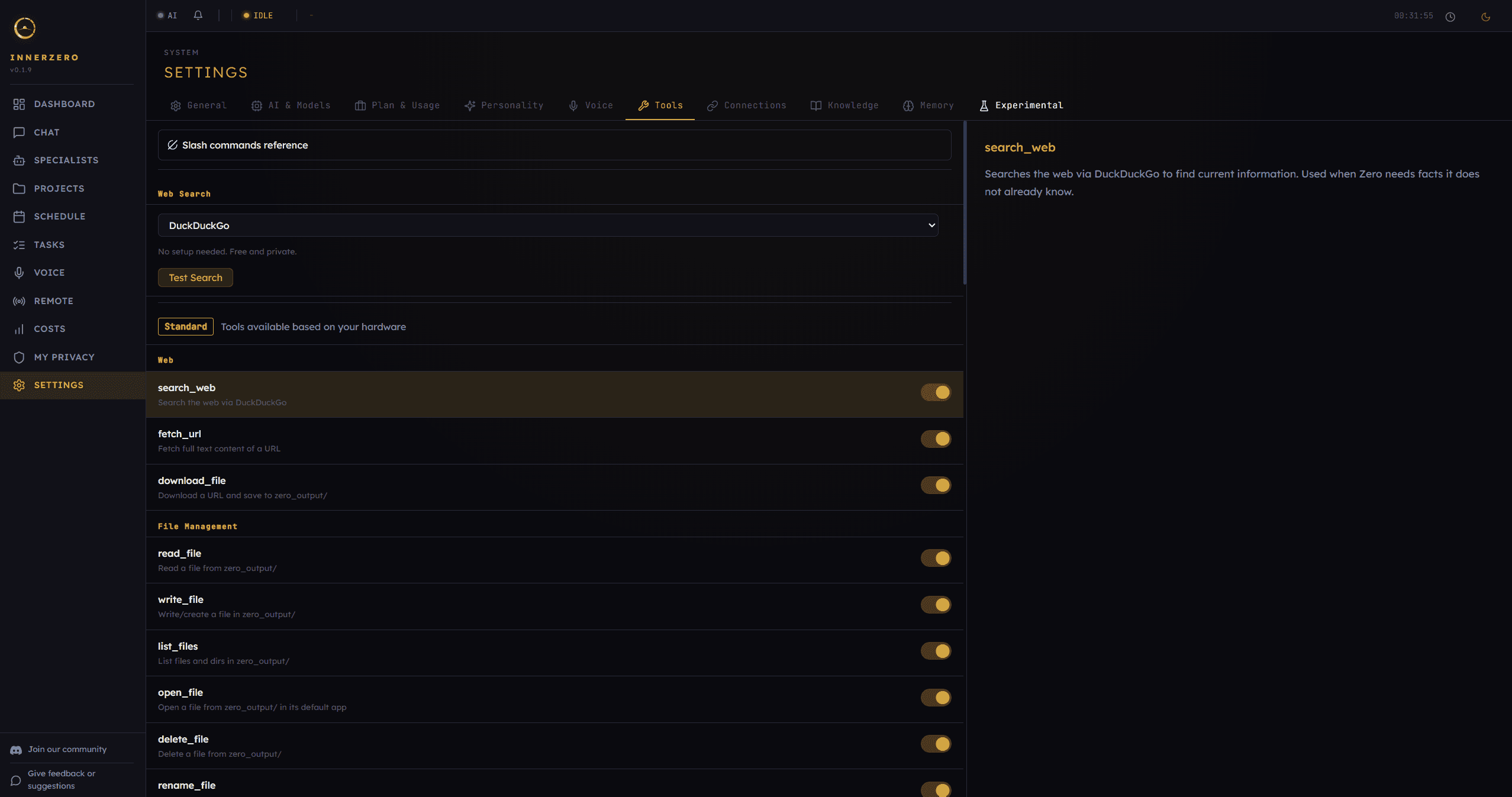
Every tool can be switched off individually. File tools are sandboxed to one output folder.
What is included
Web search with no key and no account
Search runs through DuckDuckGo by default, and the setting says so plainly: "No setup needed. Free and private." If you would rather use something else, the Web Search picker also takes a Brave key, a Google Programmable Search key, or the URL of your own SearXNG instance. A Test Search button next to the picker tells you whether the provider is actually working before you rely on it, and if your chosen provider errors, search falls back to DuckDuckGo automatically.
Reading a page in full, and saving files from it
Search finds pages; fetch_url reads one. It pulls the readable text out of a page and strips the scripts, navigation, headers and footers, so the assistant works from the article rather than the furniture around it. download_file saves a URL into your output folder as a streamed download with a size cap, and it asks for your approval first. Both network tools resolve the hostname once, refuse private and internal addresses, and re-check on every redirect, so a link cannot be used to reach something on your own network.
Ask questions about your own documents
Attach a .txt, .md, .pdf, .docx, .xlsx or .csv file in chat and ask about it directly. The text is extracted and indexed on your machine rather than being posted to a service, and spreadsheets are read sheet by sheet rather than flattened into one blob. Images can be attached too. The step-by-step version of this is in the local document Q&A guide below.
File work, sandboxed to one folder
Reading, writing, listing, renaming, deleting, opening and downloading all resolve against a single output folder rather than your whole disk. Filenames are sanitised and path traversal is blocked at the point the path is resolved, so a request cannot walk out of the sandbox. You can move that folder in Settings, General, Output Location. The chat file tools work in the folder itself, and a specialist agent working inside a project gets its own subfolder of it, named after that project.
Anything destructive stops and asks
Writing a file, deleting one, renaming one, opening a file or an application, downloading, writing to your clipboard and deleting a calendar event all pause and render an approval card in the chat with Approve and Dismiss. Nothing happens until you click. Pending approvals are held in memory only, expire after five minutes, and are dropped entirely if the app restarts, so a request you walked away from cannot fire later. The tool that asked for the approval is not able to grant it.
Arithmetic the model does not guess at
The calculator parses your expression into a syntax tree and evaluates it directly, so the answer comes from real arithmetic rather than a language model recalling what the number probably is. It handles the usual operators plus maths functions, pi and e. When an expression cannot be evaluated it declines instead of returning something plausible and wrong, and the assistant answers the question another way.
Calendar events from a sentence
The assistant can create, list, find, update and delete local calendar events. You do not have to say the word calendar: a scheduling verb plus a time anchor is enough, so "add gym tomorrow at 5pm" becomes an event. Deleting needs the title to match what is stored before it will even stage the approval card. Events you have marked private are never shown to the AI at all. Connecting Google Calendar pulls your Google events in, and sending local events the other way is a separate opt-in: the "Push local events to Google Calendar" switch in Settings, Connections.
Gmail, read-only and metadata only
The Gmail connector uses the read-only scope and a 30-day window by default. What it stores is the sender, the subject and a short snippet. Message bodies are never fetched or kept. The assistant then reads that local cache rather than calling Gmail on your behalf, so asking about recent mail makes no network request at all and works the same way in offline mode.
A live queue for background work
Longer jobs do not block the chat. They appear on the Tasks page as a board with Queued, Running, Waiting and Done lanes, showing progress and an estimated time where one can be worked out. Two tasks that need the same resource are never run at the same time, so two syncs of the same connector cannot overlap. Jobs that do not share a resource run alongside each other.
Timers, countdowns, alarms and reminders
You get named stopwatches you can pause and resume, countdown timers, alarms set for a clock time that can ring with your own alert sound instead of the default tone, and reminders that fire after a delay and push a notification when they do. Delays are parsed from ordinary phrasing, so "remind me in 30 minutes" works. The clock in the status bar drives the same underlying timers, so something you started from chat shows up there too.
Quick notes, saved as a plain text file
Saying something like "note: buy milk tomorrow" appends a timestamped line to a notes file in your output folder, and the assistant can read the whole lot back on request. It is a plain text file, so you can open it in any editor, back it up, or delete it without going through the app. Nothing about it is locked inside a proprietary store.
Dictionary lookups
Definitions come with pronunciation, meanings grouped by part of speech, synonyms and example sentences, sourced from a free dictionary service that needs no key and no account. It is one of the tools the proactive briefing agent is allowed to use as well, so a scheduled briefing can define a term without you being at the keyboard.
Text and data transforms
Fifteen text operations cover the everyday cleanup jobs: uppercase, lowercase, word count, sorting lines, removing duplicates, trimming, turning a list into bullets and more. Next to them sit a JSON helper that formats, minifies, validates, lists keys and pulls a value out by dot path, and a hash helper for MD5, SHA1, SHA256 and SHA512, UUID generation, and base64 encoding and decoding. All of it runs locally with no round trip.
System status from the chat box
Ask how the machine is doing and the assistant reports your OS, CPU load, memory, disk and GPU status. The tool is deliberately fault-tolerant and uses nothing beyond the standard library: a section it cannot read comes back as unknown rather than failing the whole answer. It is genuinely useful before deciding whether to load a larger model.
Every tool has its own switch
Settings, Tools lists all 45 tools grouped by category with a toggle beside each one and a plain-English description of what it does. Switching one off removes it from what the assistant is offered, not just from the interface, and Reset to Defaults puts everything back. At the top of the same tab is a Slash commands reference, listing the commands you can type with a leading slash in any chat box to run something directly instead of asking for it.
Only the tools your message needs
Handing a model the full instructions for 45 tools on every message makes it slower and more likely to pick the wrong one. Instead a router matches your message against keyword groups and intent patterns and offers only the relevant tools, and a message with no tool intent at all is answered with no tools offered. A tool that was not offered for that message is refused before it can run, which sits on top of the normal permission tiers rather than replacing them. The same tab also shows your detected hardware tier, which is what assigns the local model behind the assistant, and on a CPU-only setup the per-message tool briefing is trimmed further to keep replies moving.
Step-by-step guides
Walkthroughs for setting this up and getting the most from it.
How AI Reads Your PDFs Without Uploading Them
Attaching documents, what happens to the text, and how questions get answered on your own machine.
How to Use AI With Gmail Without Giving Up Your Privacy
Connecting Gmail with the read-only scope and what the assistant can and cannot see.
How to Use AI With Google Calendar Privately
Setting up calendar sync and keeping private events out of the assistant's view.
5 Things You Can Do With InnerZero Right Now
Practical starting points that use the built-in tools rather than settings screens.
Frequently asked questions
How many tools does InnerZero come with?
45. Settings, Tools lists every one of them grouped by category, with a description and an individual on and off switch. They cover web search and page reading, sandboxed file operations, calendar events, timers and alarms, reminders, notes, a calculator, a dictionary, text and data transforms, clipboard access, system information, screen reading and offline knowledge lookups.
Do I need to install plugins or extensions to get tools?
No. Every tool ships inside the app. There is no plugin store, no extension to add, no server to run and no config file to write. The only tools that need anything extra are the optional ones, such as choosing a paid search provider instead of the default, or connecting Gmail or Google Calendar.
Does web search need an API key?
No. The default provider is DuckDuckGo and it needs no key and no account. If you prefer a different provider you can supply a Brave key, a Google Programmable Search key, or the URL of your own SearXNG instance, and a Test Search button lets you confirm it works before relying on it.
Can the AI delete or overwrite my files?
Only inside one folder, and only after you approve it. File tools resolve every path against a single output folder and path traversal is blocked, so nothing outside that folder is reachable. Writing, deleting, renaming, opening and downloading each pause and show an approval card in the chat, and nothing happens until you click Approve.
Can I turn individual tools off?
Yes. Settings, Tools has a switch for each tool. Turning one off removes it from what the assistant is offered rather than just hiding it, so the model is never told the tool exists. Reset to Defaults turns everything back on if you change your mind.
Does InnerZero read my Gmail messages?
It reads the sender, the subject and a short snippet, and never the message body. The connector uses Google's read-only scope and a 30-day window by default. Once mail has been synced, the assistant answers from that local cache rather than calling Gmail again.
Explore more
- AI ChatStreaming local chat with slash commands, attachments, and export to real documents.
- Action HubResearch and apply assistant that runs on your own key and asks before it acts.
- Proactive AssistantScheduled briefings and reminders, written in plain English and silent until you set one up.
- All features