
Briefings that arrive without you asking
An assistant that only speaks when spoken to leaves the routine work with you. You still have to open the calendar every morning, ask what came in overnight, and remember the thing you meant to deal with at five.
InnerZero can run on a schedule instead. In the app this sits under SCHEDULE in the left sidebar, with tabs for Calendar, Briefings, Quick Add, History and Settings. A fresh install has no briefings at all, so nothing arrives until you write the first one and switch it on.
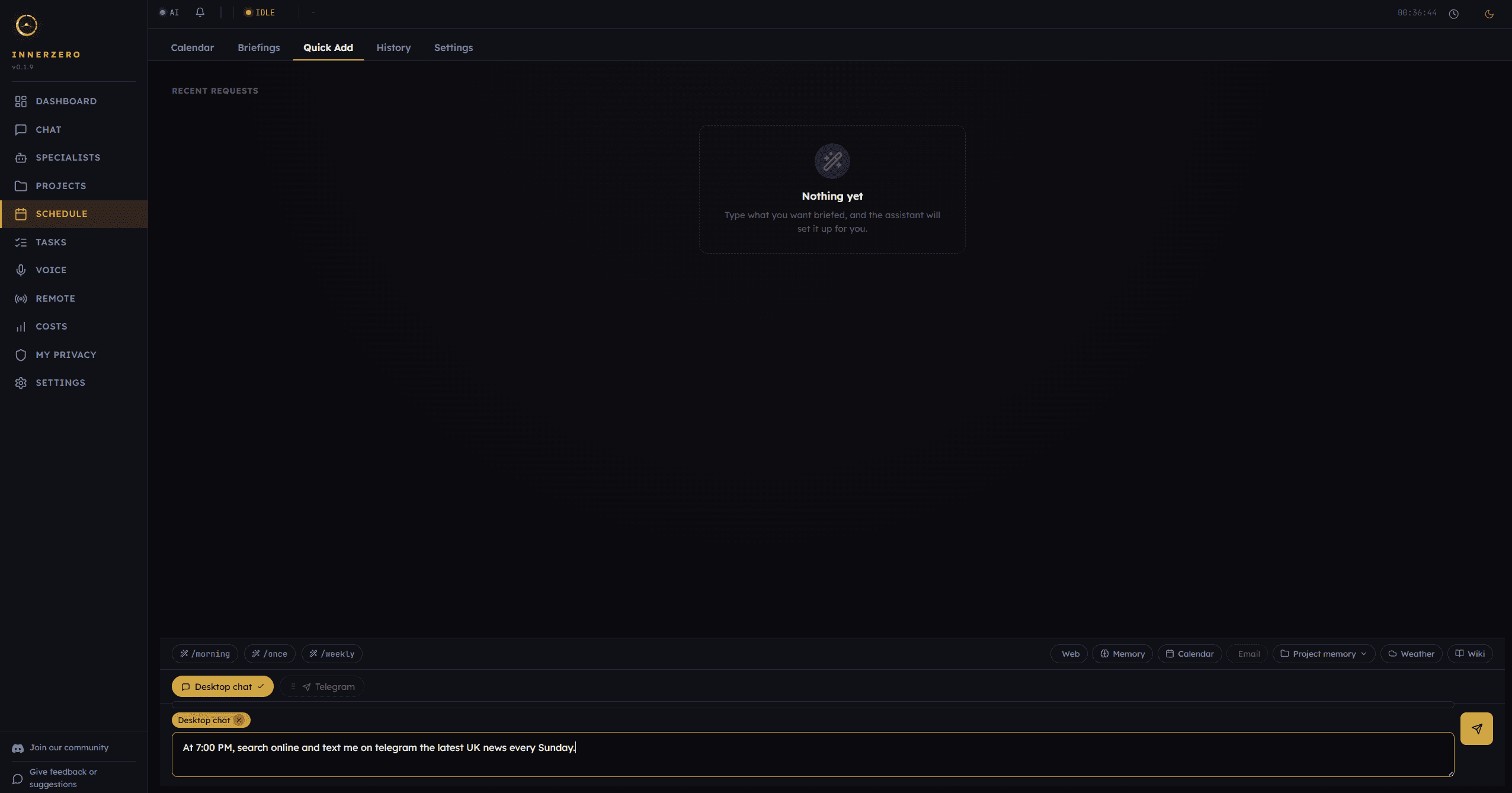
Quick Add. Type what you want briefed in plain English and pick where it should arrive.
What is included
Say when, in your own words
The Quick Add tab takes an ordinary sentence and turns it into a scheduled briefing. Typing "At 7:00 PM, search online and text me on telegram the latest UK news every Sunday" produces a draft with the type, the timing, the sources and the delivery channel already worked out. Nothing is saved at that point: you get a preview card showing what, when and where, along with a parse confidence reading, and you confirm before it becomes a real briefing. Three slash presets, /morning, /once and /weekly, drop a starting phrase into the box if you would rather edit than write from scratch.
Or set one from the chat box
The same parser sits behind two slash commands in chat, so you do not have to leave the conversation. Use /remind-me with a time and a subject for a one-off, or /brief-add with a description for a recurring briefing. /brief-add opens the Briefings tab with a draft so you can check what was understood before it runs. /remind-me is fire-and-forget: a confident reminder parse is saved straight away and confirmed in chat, and anything less certain opens the tab for review instead. When the wording is too vague to parse at all, the assistant says so and points you at Quick Add rather than guessing.
A library of briefing types, not one generic summary
Each briefing is built from a type that knows what to gather and how to phrase it. Morning briefing gives today's events, top open tasks and one priority pick. Daily summary is an evening recap, Weekly review runs Sunday evening, Task priorities suggests what to tackle first on a weekday morning, and Upcoming event alert fires only when something actually falls inside the prep window. Gmail digest and Important emails alert read cached Gmail metadata and never fetch new mail. InnerZero Pro adds seven more templates: Focus plan, Evening wind-down, Daily learning, Daily news update, Topic watch, Monthly review, and Yesterday and today.
Smart Briefings for anything the templates miss
When no template fits, a Smart Briefing lets you write the goal yourself and hands the planning to the Automation Specialist. It runs a short agent loop, capped at five iterations with a single tool call each and a sixty second ceiling across the whole run, so a briefing cannot quietly turn into a long job. Tools come from a fixed briefing whitelist and anything outside it is refused outright. A word cap on the answer keeps the result readable rather than sprawling.
Point it at the sources you care about
Quick Add and the briefing editor both show the same source chips: Web, Memory, Calendar, Email, Project memory, Weather and Wiki. They are preferences rather than hard limits. Leave them blank and the assistant decides for itself; tick a few and it favours those while still able to fall back on other permitted tools. Email stays greyed out until Gmail is connected, and Project memory scopes the memory queries to one project so a work briefing does not wander into everything else you have told it.
Desktop chat, or your phone over Telegram
There are two delivery channels. Desktop chat writes the briefing into your chat session first and only then nudges the window, so one that fires while the app is closed or while you are on another page is still waiting when you come back. Telegram sends the same briefing to the chat IDs you have allow-listed, using a bot token you create yourself on the Remote Access page, and stays unavailable until you do that; messages on that route pass through Telegram's servers, which is why it is a separate opt-in. A run that delivers raises the in-app notification bell. If every channel fails, the bell shows an error naming each channel that broke. Runs skipped by quiet hours, Pause everything or Offline Mode are recorded in History rather than on the bell.
Quiet hours and one switch for everything
Schedule Settings holds a quiet-hours window that suppresses delivery between a start and an end time, including windows that wrap past midnight such as 22:00 to 07:00. A run falling inside the window is skipped rather than saved up and dumped on you later, and the skip is recorded so you can see it happened. Above it sits Pause everything, which stops all scheduled briefings and quiets the bell in one move; the same control is mirrored on the Specialists page as the Automation Specialist toggle. Offline Mode, the switch that blocks all outbound network traffic, skips every scheduled briefing while it is on, including the ones that would otherwise work offline, and the skip is recorded in History the same way.
Test it before you trust it to 7am
Every briefing has a Test run button that fires one immediately without disturbing its normal schedule, so you can read the actual output before committing to a daily delivery. Quick Add offers the same thing as Save and test run at the moment you create it. The History tab then keeps a record of past runs marked queued, running, delivered, failed, skipped or cancelled, filterable by type, channel, status and date and searchable by title or body. The editor also previews the next few run times before you save, which catches a cron expression that does not mean what you thought it meant.
Nothing runs until you set it up
InnerZero ships with no briefings. The Briefings tab opens on an empty state, the scheduler has nothing to pick up, and the assistant stays quiet until you create the first one and enable it. Each briefing then carries its own toggle, so you can keep one running and mute another without deleting anything, and past run history survives a delete.
Step-by-step guides
Walkthroughs for setting this up and getting the most from it.
Frequently asked questions
Does InnerZero send me briefings automatically?
No. A new install has no briefings at all, so there is nothing for the scheduler to run. The Briefings tab opens on an empty state and the assistant stays quiet until you create a briefing and switch it on.
Can I set up a briefing by just typing what I want?
Yes. The Quick Add tab on the Schedule page takes a plain sentence such as a request for UK news on Telegram every Sunday evening and turns it into a draft with the type, schedule, sources and delivery channel filled in. You see a preview card and confirm it before anything is saved. The same parsing sits behind the /remind-me and /brief-add commands in chat.
Where do briefings get delivered?
To desktop chat, to Telegram, or to both. Desktop chat is available straight away. Telegram needs a bot token you create yourself and at least one allowed chat ID, both added on the Remote Access page, and it stays unavailable until you do that. A run that delivers also shows up on the in-app notification bell, and if every channel fails the bell shows an error naming each one that broke.
What happens if a briefing fires while the app is closed?
It is not lost. The desktop chat channel writes the briefing into your chat session first and only then tries to update the window, so the message is waiting for you the next time you open the app or return to the chat page.
Can I stop briefings arriving overnight?
Yes. Schedule Settings has a quiet-hours window with a start and an end time, and windows that cross midnight such as 22:00 to 07:00 are handled correctly. Runs that fall inside the window are skipped and recorded in the history rather than delivered late. There is also a Pause everything switch that stops all scheduled briefings at once.
Do briefings need an internet connection?
It depends on the briefing. Types built on your calendar, memory, tasks or installed knowledge packs work without a connection when your assistant is running a local model. Types built on web search, such as the Pro templates Daily news update and Topic watch, need one. Turning on Offline Mode, which blocks all outbound network traffic, skips every scheduled briefing while it is on, including the ones that would otherwise run without a connection, and each skip is recorded in the history.
Explore more
- Tools45 built-in tools for search, files, calendar and time. Each one switches off on its own.
- MemoryPersistent memory stored on your machine, with your recent and archived memories visible and removable.
- Action HubResearch and apply assistant that runs on your own key and asks before it acts.
- All features