
Cloud AI is optional, and it is off out of the box
Most AI apps decide for you. Your words go to somebody's server because that is the only way the product works, and what actually gets sent is a paragraph in a policy document rather than something you can look at.
InnerZero starts local and stays there until you say otherwise. If you do want a frontier model, you can bring your own keys and pay the provider directly, or use a managed plan on subscription credits. Either way the app shows you which mode you are in, scrubs what you tell it to scrub, and keeps a log of every connection it made.
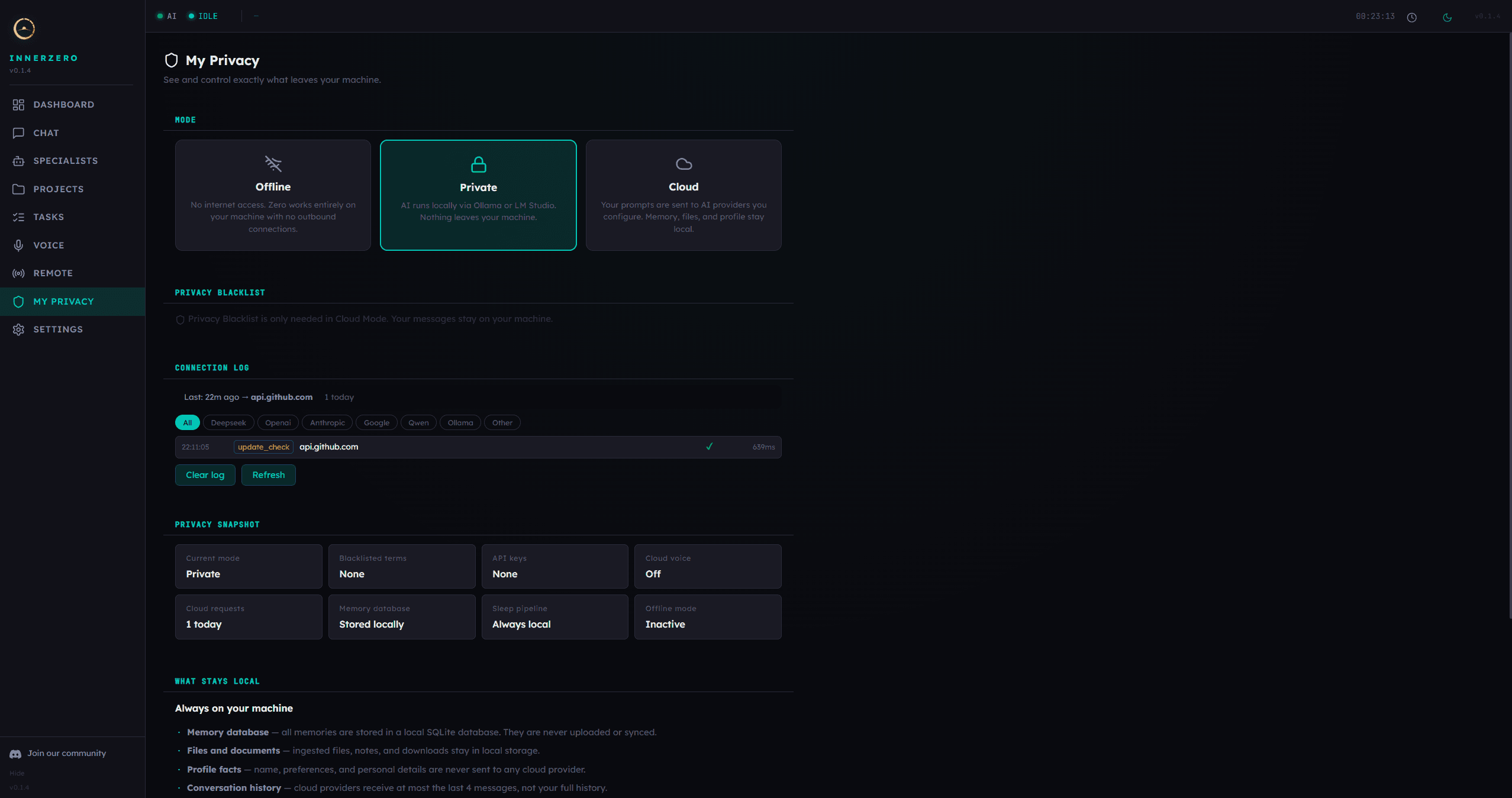
The My Privacy page. Pick Offline, Private, or Cloud, and see every outbound connection.
What is included
Three modes: Offline, Private, Cloud
Offline blocks outbound network connections at the application layer, so the app runs entirely on your machine with no internet access at all. Private keeps the AI local through Ollama, LM Studio, or llama.cpp, so no prompt, memory or profile goes to an AI provider. Anything you have connected yourself, such as Gmail or Google Calendar, still syncs; Offline is the mode that stops all of it. Cloud sends an assembled prompt to the providers you have set up: your current message, a short profile block of name, preferences and personal details, a few relevant memory snippets, and the relevant part of any file you attach, while the memory database itself stays on your machine. Private is the default, and all three sit side by side as cards on the My Privacy page.
Off by default, and labelled when it is on
Cloud mode is off out of the box, and it never switches itself on before you have accepted the warning. The first time you enable it you get a warning screen that spells out what providers receive and what they do not, and it will not change mode until you accept. The one time the app sets the mode for you is after you buy a managed plan, and never before you have accepted that warning. If you buy first, the change waits until you accept. Once cloud is active with a provider configured, the status bar carries a CLOUD badge and a Private/Cloud pill sits in the chat input row, so you can see which way a message is about to go before you send it.
Bring your own keys for seven providers
You can add your own API keys for DeepSeek, OpenAI, Anthropic, Google AI, Qwen, xAI Grok, and Kimi, and pick which model each role uses. Requests go straight from your machine to that provider's own API endpoint, so there is no InnerZero server in the middle and nothing added on top of what the provider charges you. Keys are encrypted at rest using a key derived from the machine itself, and they are never written to any log.
Managed credits or your own keys, never both by accident
If you would rather not manage keys at all, a managed plan routes through the InnerZero proxy on subscription credits instead. You choose which of the two is in use, and the router will not quietly swap between them: if the path you picked fails, the request falls back to your local model rather than to the other cloud path. That is why a subscriber is never silently billed through their personal provider account, and someone on their own keys never burns credits they did not mean to spend. The pricing page covers what the plans include.
What actually leaves your machine
It is an assembled prompt, not your data store. On your own keys that means system instructions, your current message, a small number of relevant memory snippets, a short profile block, and a short truncated slice of recent exchanges. A managed plan sends less again: the memory pack and profile facts are stripped before the request goes anywhere, the system prompt is trimmed, and only the last four exchanges are carried. On neither path does your memory database or your full conversation history go out. A file you deliberately attach to a message is the exception: the relevant part of it travels with that prompt, and nothing else in your file store does.
Privacy blacklist
You can list words and phrases that should never reach a cloud provider, sorted into name, address, email, phone, and custom categories. Before a message leaves, each one is swapped for a neutral placeholder such as [PB_NAME_1], and the placeholder is swapped back in the reply before you read it, before it goes into memory, and before anything is logged. On the chat path the original terms never leave the machine, and the mapping between term and placeholder is held in memory only, never written to disk. It applies in cloud mode, because Private and Offline have nothing outbound to scrub. There are two documented exceptions. Turning on cloud sleep sends memories and uploaded documents to the provider you picked unscrubbed, and the app asks for a separate one-time consent before that starts. The other is the speech to speech voice option below, where raw audio cannot be covered by a text blacklist.
One guard, and it fails closed
A single guard sits immediately before the connection on the managed proxy, sleep, cloud voice, agent and briefing paths, and it is built to block rather than guess. If it cannot read your mode, if a settings file is corrupt, or if it cannot classify the destination with confidence, the answer is no. On the chat path with your own keys it is the mode check in the router that holds Offline and Private, forcing the request back to your local model before any provider is picked. When the guard does block, it records only the feature, the class of destination, and the reason, never the payload or the address.
A log of every outbound connection
Each connection is recorded with the destination host, the feature that made it, whether it succeeded, and how long it took. You can filter the list down to a provider, and any request where the privacy blacklist replaced something carries a badge showing how many terms were swapped. The log is written to a file on your machine, rotates daily, keeps the last seven days, and there is a button to clear it.
My Privacy, one page instead of a buried setting
The mode selector, the blacklist editor, and the connection log all live on one page rather than scattered through tabs. A snapshot grid shows your current mode, how many terms are blacklisted, how many API keys are configured, whether cloud voice is on, and how many cloud requests went out today. Below that is a plain list of what is always local, and a row of controls for running a sleep cycle, creating a backup, clearing the visible conversation, and managing keys.
Routing that does not send everything out
In cloud mode the router classifies each request rather than pushing all of them to a provider. Simple ones stay on your local model and heavier ones go out, ordered cheap and fast first in Quick mode and quality first in Thorough mode. You can override that from the engine selector in the chat input and pin a specific provider, and your choice always wins. Tool shortcuts such as the calculator and the clock skip the AI pipeline entirely and never reach the cloud at all.
Cloud voice, with the speech step still local when it matters
With cloud mode on, voice can run through the cloud instead of locally, either on your own OpenAI key or on a managed plan's credits. On your own key, Standard mode splits the work into two cheaper calls, your cloud provider handling the reasoning as text and a separate model doing the speech, while Premium sends one bundled audio call for higher quality. There is also a speech to speech option that streams raw audio, which suits slower hardware but cannot be covered by a text blacklist, so the app asks you to acknowledge that once before it is used, and a managed plan always takes that speech to speech route. In Standard mode, if the privacy blacklist is active the speech step falls back to local voice rather than sending scrubbed text to the speech model.
Works behind a corporate or university proxy
If your network needs a proxy to reach the internet, you can enter an HTTP or HTTPS proxy in Settings with an optional username and password. Local AI traffic is never routed through it: loopback addresses are excluded on every startup, even when the in-app proxy is switched off, so a request to Ollama, LM Studio, or llama.cpp on your own machine stays on your machine. The proxy changes where bytes go, not whether they are allowed to leave, so it does not bypass the egress guard or the privacy blacklist. SOCKS proxies are not supported.
Cloud vision for attached images
An attached image can be sent to a vision model for a closer look, using your own API key with OpenAI, Anthropic, Google Gemini, or xAI Grok. It fails closed by design: Offline mode, Private mode, an active privacy blacklist, or a provider without a vision model each keep the image on your machine, and the accompanying text prompt still goes through the privacy blacklist scrub. Image bytes travel a separate, gated path from text, because a text scrubber cannot cover bytes. This is bring-your-own-key only; managed plans do not send images.
Step-by-step guides
Walkthroughs for setting this up and getting the most from it.
Cloud Credits vs BYO Keys: Real Cost Breakdown Across Providers
Works out when managed credits beat your own keys, provider by provider.
What Your AI Scrubs Before Sending to the Cloud
What the blacklist replaces, what it cannot cover, and how the reply is restored.
Local AI vs Cloud AI: Which One Should You Use?
The honest trade-off between staying local and reaching for a frontier model.
Does Your AI Train on Your Prompts? Anthropic, OpenAI, Google, DeepSeek, Kimi Compared
What each major provider's terms actually say about training on what you send.
Frequently asked questions
Does InnerZero send my data to the cloud?
Not unless cloud mode is on, and it is off out of the box. The default is Private, where the AI runs locally through Ollama, LM Studio, or llama.cpp and nothing you type goes to an AI provider. There is also an Offline mode that blocks outbound network connections at the application layer, so the app works with no internet access at all.
Which cloud providers can I use my own API keys with?
Seven: DeepSeek, OpenAI, Anthropic, Google AI, Qwen, xAI Grok, and Kimi. Requests go straight from your machine to that provider's own API endpoint, so there is no InnerZero server in the middle and nothing is added on top of the provider's own pricing. Keys are encrypted at rest on your machine and are never written to any log.
What exactly gets sent to a cloud provider?
An assembled prompt, not your data store. Using your own key, that means system instructions, your current message, a small number of relevant memory snippets, a short profile block, and a short truncated slice of recent exchanges. A managed plan sends less: memory and profile facts are stripped first, the system prompt is trimmed, and only the last four exchanges are carried. Your memory database and your full conversation history are not sent on either path. A file you deliberately attach to a message is the exception, since the relevant part of it travels with that prompt.
Can I stop certain words reaching a cloud provider?
Yes. The privacy blacklist lets you list terms under name, address, email, phone, and custom categories, and each one is swapped for a neutral placeholder before the message leaves your machine. The placeholder is swapped back in the reply before you see it, before it goes into memory, and before anything is logged, and the mapping is never written to disk. It applies in cloud mode, since Private and Offline have nothing outbound to scrub.
How do I know when cloud mode is active?
The status bar shows a CLOUD badge once cloud mode is on with a provider configured, and a Private/Cloud pill sits in the chat input row so you can see which way the next message is going. The My Privacy page shows your current mode alongside a connection log listing every outbound connection with its destination host and the feature that made it.
Does InnerZero work behind a corporate or school proxy?
Yes, for HTTP and HTTPS proxies with an optional username and password, set in Settings. Local AI traffic is never routed through the proxy, so requests to Ollama, LM Studio, or llama.cpp on your own machine stay on your machine. SOCKS proxies are not supported, and the proxy only changes where traffic goes, not whether it is allowed to leave.
Explore more
- Easy SetupDouble-click an installer and a wizard does the rest. No terminal, no Docker, no config files.
- AI ChatStreaming local chat with slash commands, attachments, and export to real documents.
- VoiceFull spoken conversation, plus standalone transcribe and read-aloud panels, all running locally.
- All features