
Agents built for one job, with the coding one on its own model
One general assistant has to be a compromise. The model that is good at talking through your week is not the model you want editing a file, and handing that same assistant free run of your disk so it can cover both jobs is the wrong trade to make.
A specialist is a separate agent persona with its own system prompt, kept apart from the assistant you chat with. Two ship today. The Coding Specialist has its own model, its own file sandbox, and its own memory, and it stops for your decision twice before anything on disk changes. The Automation Specialist runs your scheduled briefings against a fixed, restricted tool list rather than against your files.
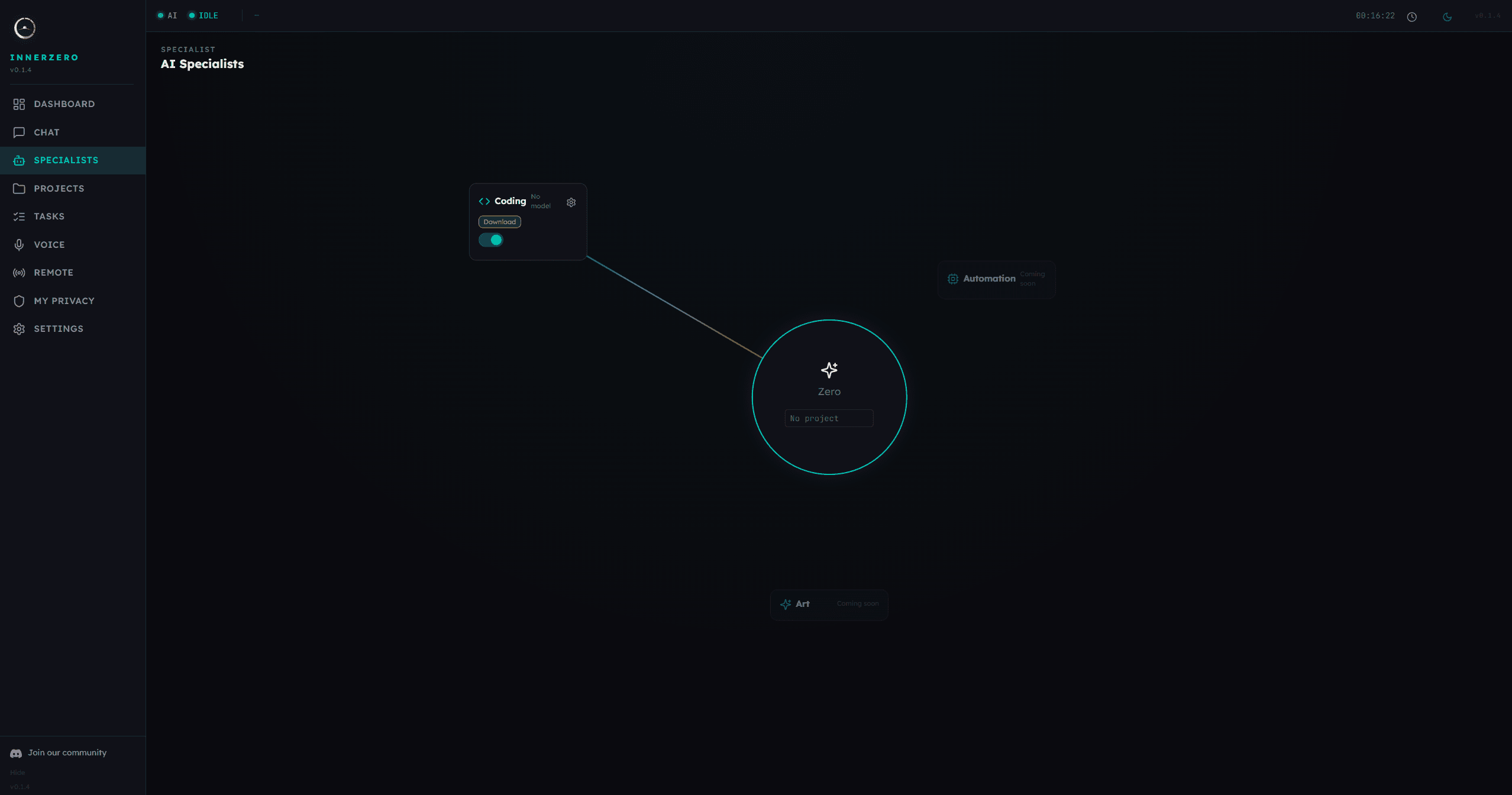
Each specialist is built for one job, with approval gates around anything the Coding Specialist changes.
What is included
A specialist is a separate worker, not a mode
Each specialist has its own name, its own system prompt, and its own config file, kept apart from the assistant you chat with. The Coding Specialist is picked from the dropdown beside the message box, which reads Zero by default and lists only the specialists you have switched on, and it stays off until you switch it on from the Specialists page, so nothing is routed to it by accident. The Automation Specialist is not chosen in chat at all: it runs briefings on a schedule, and its card carries an Active or Paused toggle instead.
Its own model, sized for the job
The Coding Specialist can run a dedicated coding model rather than your general chat model. InnerZero recommends one based on the hardware tier detected during setup, from a lightweight model on a modest machine up to a much larger one on a workstation, and you can pick a different size or install more from the same panel. When you run on Ollama, your main model is unloaded to free VRAM before the specialist loads and reloaded when the task ends, which the chat narrates while it happens. LM Studio, llama.cpp, and cloud mode skip the swap entirely, and on LM Studio you can pick Use chat model so the specialist runs on whichever model LM Studio already has loaded.
Two approval gates, both on by default
Before any coding work starts, your assistant writes a task brief and the chat shows it back to you with the model it will use, the workspace it will work in, and the folders it has been granted. Nothing loads until you press Proceed. When the work finishes it stops again and lists every proposed file, marked new or modified with its added and removed line counts, and each one opens into a full diff. The decision is Approve all or Reject all. Both gates can be turned off in the specialist's settings, and each one makes you tick a written acknowledgement of what you are giving up first.
Code work only reaches the folders you grant
For the Coding Specialist, file access is enforced at the tool layer, not by asking the model to behave itself. Every read, write, and delete resolves the real path first, then checks it against the paths you added in its Project Files section. Adding a folder grants read and write; adding a single file grants read only. System directories, InnerZero's own program folder, your application data, and key stores such as .ssh and .gnupg are blocked outright, and no grant can reopen them. You also cannot grant your home folder root or a whole drive.
Private or cloud for code work
The Coding Specialist has a Private mode that keeps the entire task on your machine and a Cloud mode that sends it to a provider you have configured. Its cloud model is picked separately in Settings under AI and Models, so it can sit on a different provider and model from the one your chat uses. Cloud mode also tightens the sandbox: files matching sensitive patterns, including .env files, private keys, and credential files, are refused even inside a folder you granted.
The Automation Specialist runs your briefings
Automation is the specialist behind scheduled briefings, and it works differently to Coding: it never swaps models, and it re-reads which engine to use on every single run. It has three modes. Local runs on your machine and follows whichever local model your chat is on, Dynamic tracks your active assistant so briefings go cloud when chat is cloud, and Cloud runs briefings on a separate provider and model chosen for briefings alone. It draws from a fixed, restricted tool whitelist rather than the full tool set, and that limit is enforced on every briefing whatever else its settings say.
Separate memory and a project notes file
Specialist memories are tagged and held apart from your assistant's own memory, so what a specialist picks up while working does not leak into ordinary chat retrieval or into overnight sleep processing. The count is shown in the Coding Specialist's settings with a button to clear it. Code work can also keep a per-project notes file holding the stack, conventions, and a dated progress log, with separate switches for reading it at the start of a task and updating it at the end.
Round limits, a timeout, and a cancel that discards
A coding task runs as a loop of rounds and you set the ceiling yourself, from three rounds up to twenty or no limit, alongside a timeout from five minutes to an hour or none at all. The chat shows which round it is on as it works. Cancel stays available the whole time the specialist is working, and at the review step Reject all discards every proposed file rather than writing it.
Art SpecialistComing soon
A specialist for image and creative work. It appears on the Specialists page as a placeholder with no model, no settings, and no toggle, and it cannot be selected in chat. It is listed so the shape of the system is visible: specialists are meant to be added over time rather than baked in as one fixed assistant.
Step-by-step guides
Walkthroughs for setting this up and getting the most from it.
Why I Built a Coding Agent That Runs Offline
What the coding agent does well, what it cannot do, and why it runs on your machine.
Why Every AI Coding Agent Should Have a Sandbox
What a real sandbox looks like, and what to check before you trust any coding agent with your disk.
InnerZero vs Cursor: Where Each One Wins
An honest comparison between a cloud-backed code editor and a local assistant with a coding agent.
Frequently asked questions
What is a specialist in InnerZero?
A specialist is a dedicated agent persona, separate from the assistant you chat with. It has its own system prompt and its own settings, and it is built for one kind of work rather than for general conversation. The Coding Specialist adds its own model, its own file sandbox, and its own memory on top of that.
Which specialists are available?
Two are live today. The Coding Specialist writes and edits code in folders you grant it. The Automation Specialist runs scheduled briefings. An Art specialist is listed on the Specialists page as a placeholder and is not available yet.
Can the coding specialist change files without asking me?
Not by default. It stops twice: once to show you the task brief before any model loads, and again to show every proposed file as a diff before anything is written. Both gates can be switched off in the specialist's settings, and each one requires you to tick a written acknowledgement first.
Which folders can the coding specialist access?
Only the folders you grant it, plus its own workspace and InnerZero's output folder. Adding a folder grants read and write; adding a single file grants read only. System directories, InnerZero's own program folder, your application data, and key stores such as .ssh are blocked outright, and no grant can reopen them.
Does a specialist use the same model as my chat?
The Coding Specialist can run a dedicated coding model, recommended from the hardware tier detected during setup, and on Ollama your main model is unloaded to free VRAM while the specialist works, then reloaded afterwards. The Automation Specialist is different: by default it follows whichever model your chat is already using.
Can a specialist run in the cloud instead of locally?
Yes. The Coding Specialist has a Private mode and a Cloud mode, and its cloud model is chosen separately in Settings under AI and Models. In cloud mode the sandbox additionally refuses sensitive files such as .env files, private keys, and credential files, even inside a folder you granted. The Automation Specialist has its own Cloud mode, with the provider and model chosen inside its own settings.