
Free Local Text-to-Speech and Speech-to-Text on Your PC
InnerZero reads text aloud and transcribes your speech to editable text, both running locally with no internet. How the voice panels work and stay private.
Most text-to-speech and speech-to-text tools send your words to a server to process them. That is fine for a shopping list, less fine for a private note, a medical question, or a draft you are not ready to share. InnerZero does both jobs on your own machine. Type something and it reads it aloud, or speak and it writes down what you said, with no audio and no text leaving your computer.
Quick summary
- InnerZero can read any text aloud and transcribe your speech into editable text.
- Both run as panels on the Voice page, separate from full voice conversation.
- Everything is processed locally, so no audio or text is uploaded.
- You can also dictate straight into the chat box with a microphone button.
What are the voice panels in InnerZero?
The Voice page has two standalone panels. One reads text aloud, which is text-to-speech, and one turns your speech into editable text, which is speech-to-text. They sit apart from the back-and-forth voice conversation mode, so you can use only the part you need without starting a full spoken chat. With the chat microphone, that gives you three separate voice tools:
| Tool | What it does | Best for |
|---|---|---|
| Text-to-speech panel | Reads text you type or paste aloud | Proofreading by ear, listening to notes, accessibility |
| Speech-to-text panel | Turns your speech into editable text | Dictating notes, capturing ideas, drafting |
| Dictate in chat | Speaks your message into the chat box | Talking to the assistant instead of typing |
This split matters in everyday use. Sometimes you just want to hear a paragraph read back, and sometimes you just want to capture a thought as text. Having each as its own panel keeps both quick to reach. For the full spoken conversation experience, see voice mode explained.
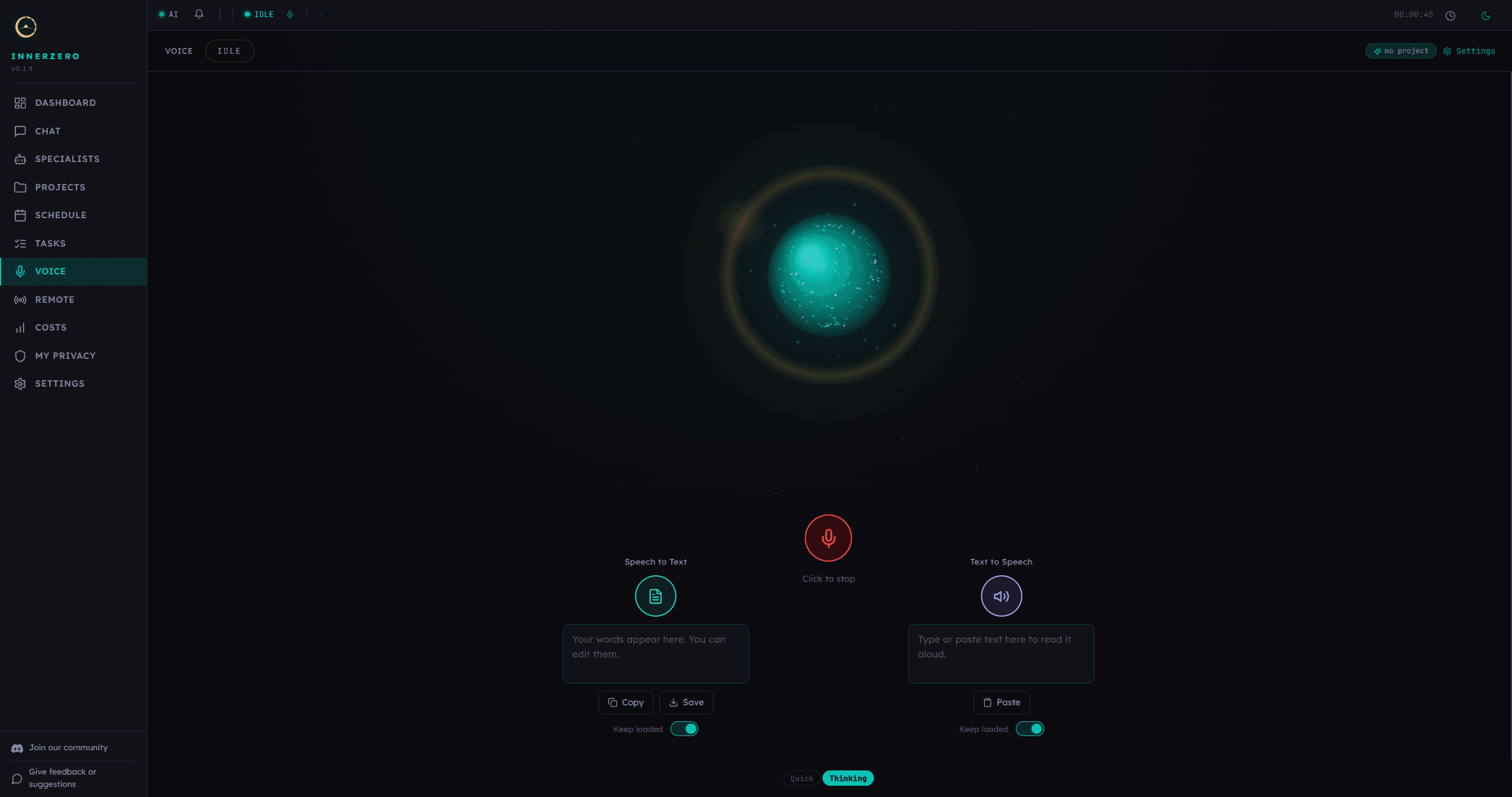
How do I read text aloud on my PC?
Open the text-to-speech panel, type or paste your text, and press play. Zero reads it back with a local voice. There is a Paste button so you can drop in text from anywhere, and a keep-loaded toggle that holds the voice model in memory so the next read starts instantly instead of warming up again.
It is genuinely useful for more than novelty. Reading a draft aloud is one of the fastest ways to catch clumsy sentences your eyes skim over. It helps if you find it easier to take in writing by ear. And it turns a long article or a set of notes into something you can listen to while you do something else. The panel shows clear loading and stop controls, so you always know what it is doing and can stop it at any point.
How do I transcribe speech into text?
Open the speech-to-text panel, press the transcribe button, and start talking. Your words appear in an editable text box that you can correct, copy, or save. Because the text lands in a box rather than being sent off somewhere, you stay in control of it: fix a name the model misheard, trim the rambling bits, then use it however you like.
Speaking is often faster than typing for a first draft. Capturing an idea before it slips away, getting a long message down without your hands, or dictating notes after a call all work well here. The transcript is yours to edit on the spot.
Can I dictate straight into the chat?
Yes. Alongside the panels, there is a microphone button in the chat box. Press it, speak, and your words appear in the input field where you can read them over and tidy them up before you send. It is dictation built into the normal chat flow, so you do not have to switch to the Voice page just to talk instead of type.
When would I use this instead of full voice mode?
Full voice mode is a spoken conversation: you talk, the assistant talks back, and it flows like a call. The panels are for the times you do not want a conversation at all. You might paste a long email into the text-to-speech panel to hear how it reads before you send it. You might open the speech-to-text panel to dictate a few paragraphs you plan to paste into a document. Or you might tap the chat microphone to ask one quick question by voice without committing to a full spoken session.
Put simply, voice mode is for talking with the assistant, while the panels are for using your voice and your ears as plain input and output. There is no single right way to use them. Many people switch between all three through the day depending on the task and where they are.
Does the text-to-speech and speech-to-text run offline?
Yes. Both run on your own hardware with no internet connection once the models are installed. Speech-to-text uses faster-whisper, a local build of the Whisper transcription model, and text-to-speech uses Kokoro, a local voice model. Your microphone audio is processed on the spot and never uploaded, and the text you type to be read aloud never leaves the machine either.
This is the same local-first model that runs the rest of the app. If the idea is new to you, what is a local AI assistant is a short explainer.
Which voices and languages does it support?
The text-to-speech panel offers 25 local voices, each with a different tone, and you can adjust the speaking speed in Settings. It is worth trying a few, since the right voice makes a long read much easier to listen to, and the keep-loaded toggle means your chosen voice is ready instantly each time. Transcription follows the interface language you have selected, so if you have set the app to your own language, speech-to-text works in it too. You can tune the audio devices, silence timing, and more in the voice settings, covered in how to customise InnerZero.
If you ever want a higher-quality cloud voice for a specific task, an optional cloud voice option exists, but it is off by default and never required. The local voices handle day-to-day use without sending anything away.
Frequently asked questions
Is my voice or audio uploaded anywhere?
No. Speech-to-text is processed locally on your machine, and your microphone audio is never uploaded or stored. The transcript stays on your computer in an editable box.
Does text-to-speech need an internet connection?
No. Both text-to-speech and speech-to-text run offline once the models are installed. No connection is needed to read text aloud or to transcribe speech.
Can I save or copy the transcript?
Yes. Speech-to-text writes your words into an editable text box, so you can correct them, copy them, or save them for later.
How many voices are available?
The local text-to-speech panel includes 25 voices, with an adjustable speaking speed. An optional cloud voice is available too but is off by default.
Is this free?
Yes. The voice panels, dictation, and the local voices are all part of the free InnerZero download.
The point
Reading text aloud and turning speech into text are everyday tasks, and they should not require shipping your words to a server. InnerZero does both on your own machine: a panel that reads any text in a local voice, a panel that transcribes your speech into editable text, and a microphone button for dictation in chat. All of it is local, all of it is private, and all of it is free. Download InnerZero to try it.
Written by
Louie SummersFounder
Louie Summers is the founder of Summers Solutions Ltd and the sole developer of InnerZero, based in Birmingham, UK. Every post here is written by the person who builds the product.
The feature this guide covers
Related Posts
Is ChatGPT Private? Where Your Conversations Actually Go
Is ChatGPT private? It sends conversations to OpenAI, stores them, and trains on them by default. Where your data goes, and the private local alternative.
2026-09-25
How to Run DeepSeek Locally and Keep It Private
Run DeepSeek locally with the open-weight R1 and V3 distills, keep your data off the cloud, pick the right model for your hardware, and use it in InnerZero.
2026-09-22
A Private AI Assistant for Freelancers and Small Business
Freelancers and small teams handle client data they cannot pour into a cloud chatbot. InnerZero runs locally so client work stays on your machine. What it helps with, and how the Business Licence works.
2026-09-15