
How to Customise Your Local AI Assistant: Themes, Voice, and Tools
Personalise your AI assistant with custom themes, AI personality settings, voice options, and tool preferences. All running locally on your PC.
InnerZero isn't a one-size-fits-all app. You can change how it looks, how the AI talks, what tools it uses, and how voice works. Here's a quick tour of what's customisable.
What themes are available?
Go to Settings > General > Theme and pick one:
- Dark Zero. The default. Gold accents, teal secondary, deep blue-black backgrounds. This matches the innerzero.com website design.
- Light Zero. The light variant. Same colour palette but with white and grey backgrounds. Easy on the eyes in well-lit rooms.
- Classic Carbon. Orange accents on dark grey. If you like the old-school terminal aesthetic.
- Soft Pink. Pink accent tones for something different. Same dark background.
- Dark Teal. Teal accent tones instead of gold. Clean and cool.
- High Contrast. A true-black background with maximum-contrast text, built for low-vision use.
- Neon Tokyo. An exclusive animated theme that unlocks with a code, and more premium themes come with InnerZero Pro.
Themes apply instantly. No restart needed.
How do I set InnerZero's AI personality?
By default, Zero responds in a neutral, helpful tone. You can change that.
Go to Settings > Personality and pick a preset:
- Professional. Formal, precise, structured responses. Good for work.
- Friendly. Warm, casual, uses more natural language.
- Concise. Brief, direct, no fluff. Gets to the point fast.
You can also create custom personalities with your own instructions. "Always respond in British English." "Use technical language for coding questions." "Be enthusiastic about cooking topics." Write whatever you want and Zero adapts.
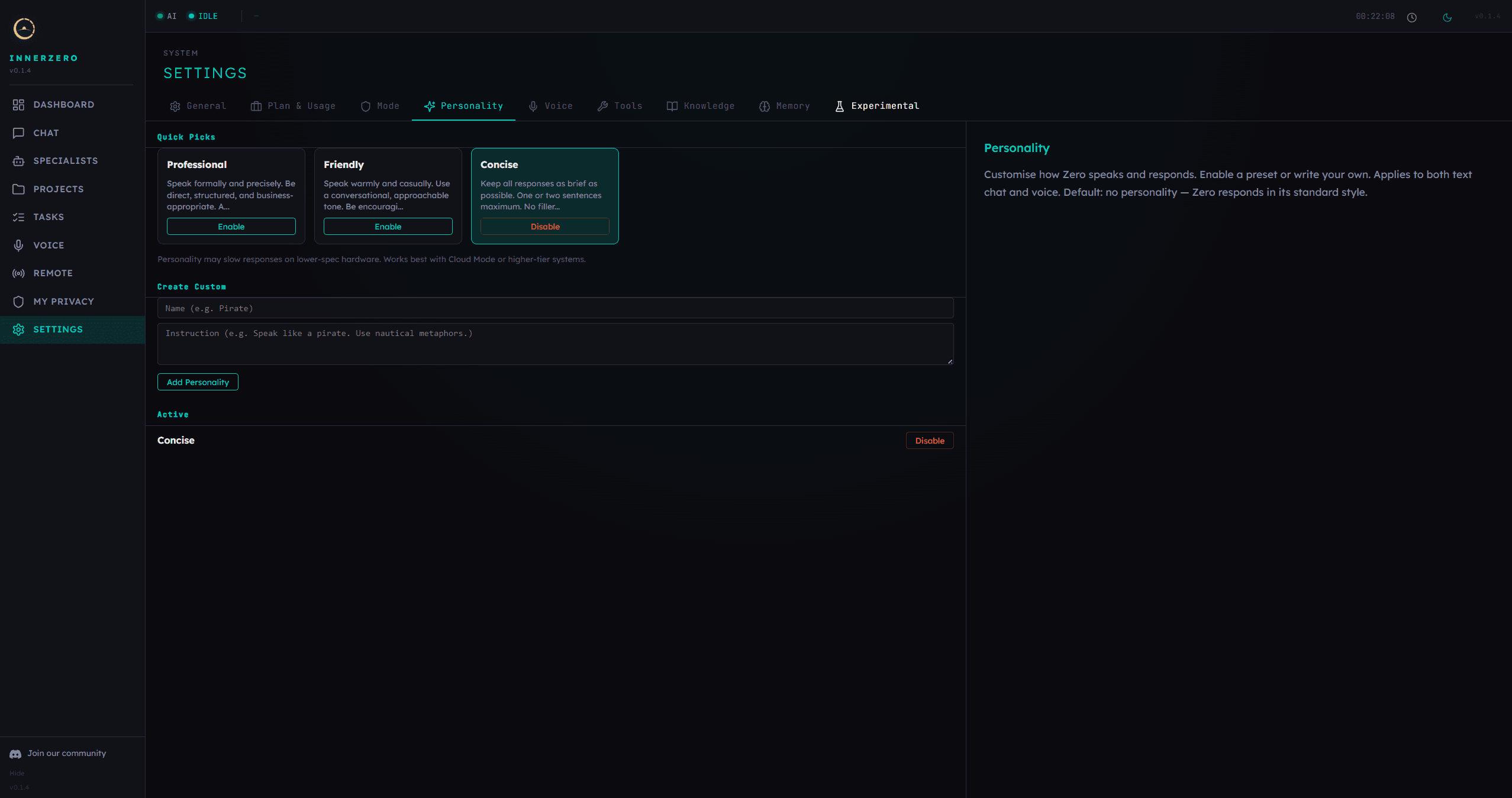
Personalities apply to both text and voice conversations. You can enable multiple personalities at once. They blend together naturally.
Can I disable specific tools?
InnerZero has 30+ built-in tools. Maybe you don't want the AI using some of them. Go to Settings > Tools and toggle individual tools on or off.
Disabled tools are completely hidden from the AI. It won't try to use them or suggest them. If you never use the dictionary, turn it off. If you don't want screen reading, disable it. You're in control.
A "Reset to Defaults" button brings everything back if you change your mind.
How do I customise the voice?
The voice system has several adjustable settings in Settings > Voice:
TTS voice. Choose from 14 local voice options. Each has a different tone and character. Try a few and pick the one you like.
Speed. Adjust how fast Zero speaks. Some people prefer faster delivery, others like it slower.
Audio mode. Headset mode for low-latency when using headphones. Speaker mode with echo suppression when using external speakers and a separate mic.
Silence threshold. How long Zero waits after you stop talking before it processes your speech. Lower values make it more responsive. Higher values give you more time to pause between sentences.
Input/output devices. Pick which microphone and speaker to use if you have multiple audio devices.
Where does InnerZero save files?
InnerZero saves files (notes, downloads, generated content) to an output folder. By default, this is in your Documents. You can change it in Settings > General > Output Location.
You can also create a desktop shortcut to your output folder for quick access.
What does the active project feature do?
If you're working on multiple things, you can create projects and scope your conversations. When a project is active, Zero focuses its memory and file output on that project.
Switch projects in Settings > General > Active Project or from the project manager page.
How do I change the response format?
Choose between formatted (Markdown rendered as rich text with headers, lists, and code blocks) or plain text (simple text with line breaks). Settings > General > Response Format.
Most people prefer formatted. But if you're copying responses frequently, plain text can be cleaner.
The point
InnerZero adapts to you. Your visual preferences, your communication style, your workflow. Change whatever you want, keep whatever you like. It's your AI.
For more on what InnerZero can do, check out 5 things you can do right now. Ready to start customising? Download InnerZero.
Written by
Louie SummersFounder
Louie Summers is the founder of Summers Solutions Ltd and the sole developer of InnerZero, based in Birmingham, UK. Every post here is written by the person who builds the product.
The feature this guide covers
Related Posts
Your Feedback Goes Straight to the Person Who Builds InnerZero
InnerZero has a feedback box built into the app. Every suggestion and bug report reaches me, the person who builds it, and I read every one. Here is how it works and what happens after you send.
2026-07-22
5 Things You Can Do With InnerZero Right Now
Practical things you can do with InnerZero today. Private search, voice commands, document Q&A, text tools, and more.
2026-04-08
Is InnerZero Pro Worth It? An Honest Look
InnerZero is free and fully usable without paying. So what does InnerZero Pro add, what does it cost, and who should actually bother? A straight answer, with the free version's strengths included.
2026-09-11